Deploy IDrive® 360 via JumpCloud
Set up cloud backup and recovery for your Windows endpoints by deploying IDrive® 360 through JumpCloud. Upload the IDrive® 360 MSI package to JumpCloud, configure the installation parameters, assign it to devices or device groups, and complete installation remotely.
Prerequisites:
- Sign in to your IDrive® 360 account, choose the application type (full suite or thin client), and download the MSI installer package.
- Copy the Configuration ID from the 'Add Computers' section in the Backup Console.
Create and Configure the Custom App in JumpCloud
- Sign in to the JumpCloud Admin Portal using your administrator credentials.
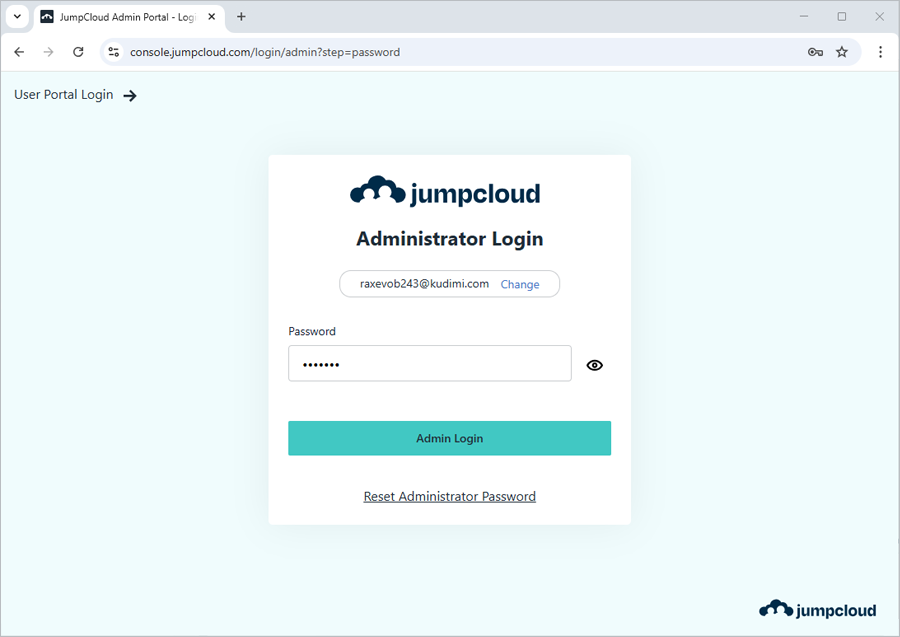
- Navigate to 'DEVICE MANAGEMENT' > 'Software Management'.
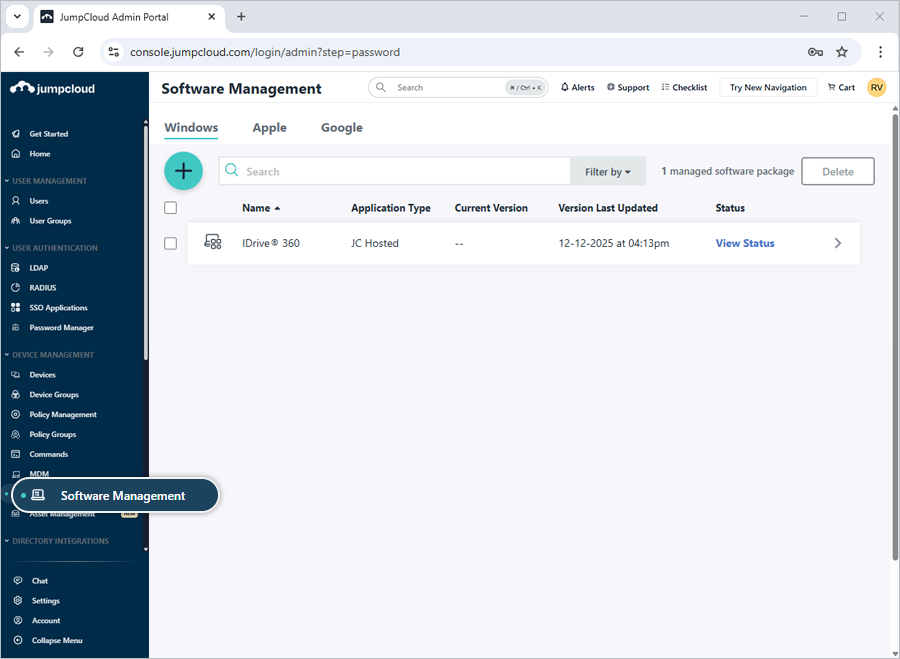
- Click the
 and select 'JumpCloud Private Repo'.
 - On the 'New Custom App' page, provide the application details:
- Application Name: IDrive® 360
- Description: Mass deployment for IDrive® 360
- Deployment Configuration: Command line options - In the 'Command line options' field, enter the wrapped arguments:
WRAPPED_ARGUMENTS="/CONFIG_ID=eyJ0b2tlbiI6ImxjcjgxaW80S2aWkzMTg1NyIsImR0dXMiOnRydWUsImb25SZXF1aXJlZCI6ZmFsc2V9"
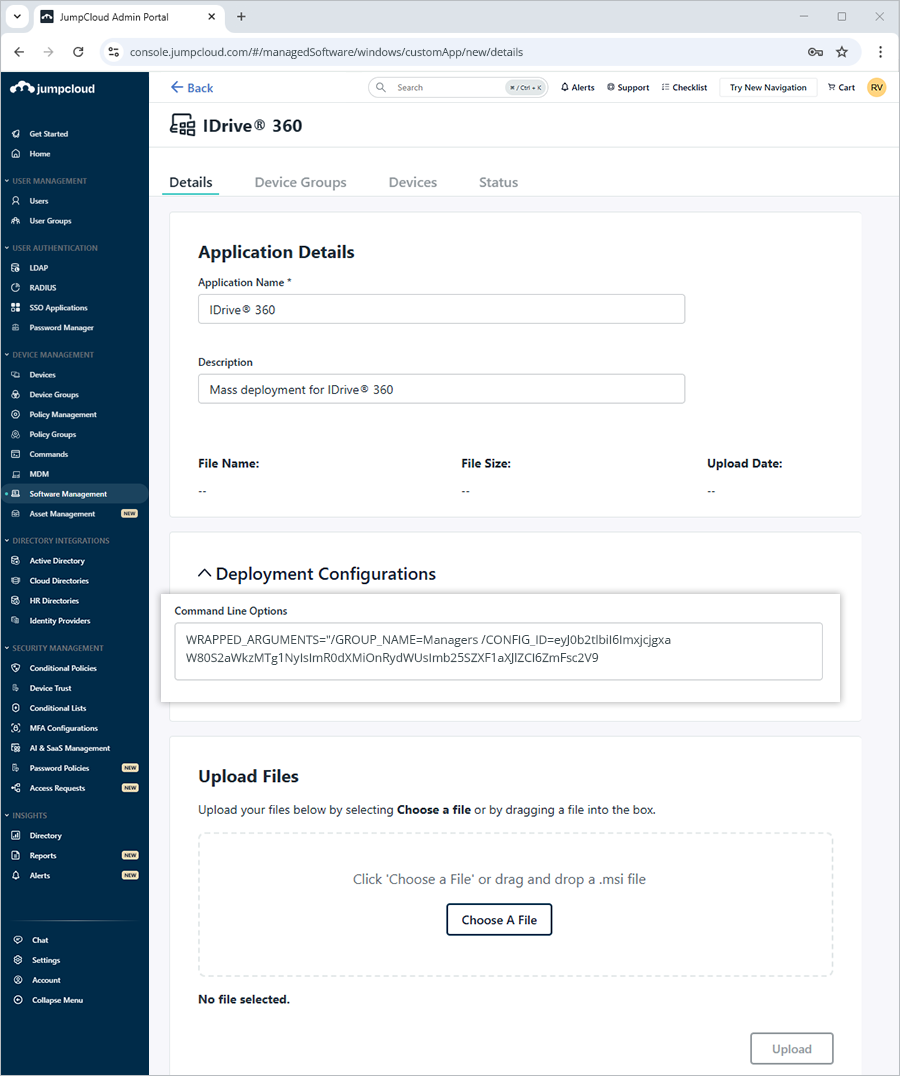
Note: CONFIG_ID is mandatory. Optional parameters include GROUP_NAME, PVT_KEY, and DEVICE_TAG.
Sample command:
WRAPPED_ARGUMENTS="/GROUP_NAME=Managers /CONFIG_ID=eyJ0b2tlbiI6ImxjcjgxaW80S2aWkzMTg1NyIsImR0dXMiOnRydWUsImb25SZXF1aXJlZCI6ZmFsc2V9 /PVT_KEY=123456"
Parameter descriptions:
Parameters DescriptionWRAPPED_ARGUMENTS This is an argument used to define command-line parameters. Command line arguments should always start with a wrapped argument within double quotes.CONFIG_ID This is the unique configuration ID copied from the 'Add Computers' section in the Backup Console./nodesktopicon Prevents creation of the IDrive® 360 desktop shortcut. By default, the desktop icon is created.GROUP_NAME *Name of the group to which the computer will be assigned. Here, the group name used in the example is 'Managers'.PVT_KEY If the installation is configured with a private encryption key, then this parameter should also be passed with the encryption key.DEVICE_TAG If the installation is configured with a device tag, the corresponding tag name must be passed for it to appear under the 'Email Address/Tag Name' column in the IDrive® 360 dashboard.Note:If the specified group does not exist, JumpCloud will create a new group and assign the device to it automatically.
Upload the MSI Package and Assign Devices
- Click 'Choose A File', select the IDrive® 360 MSI package, and click 'Upload'.
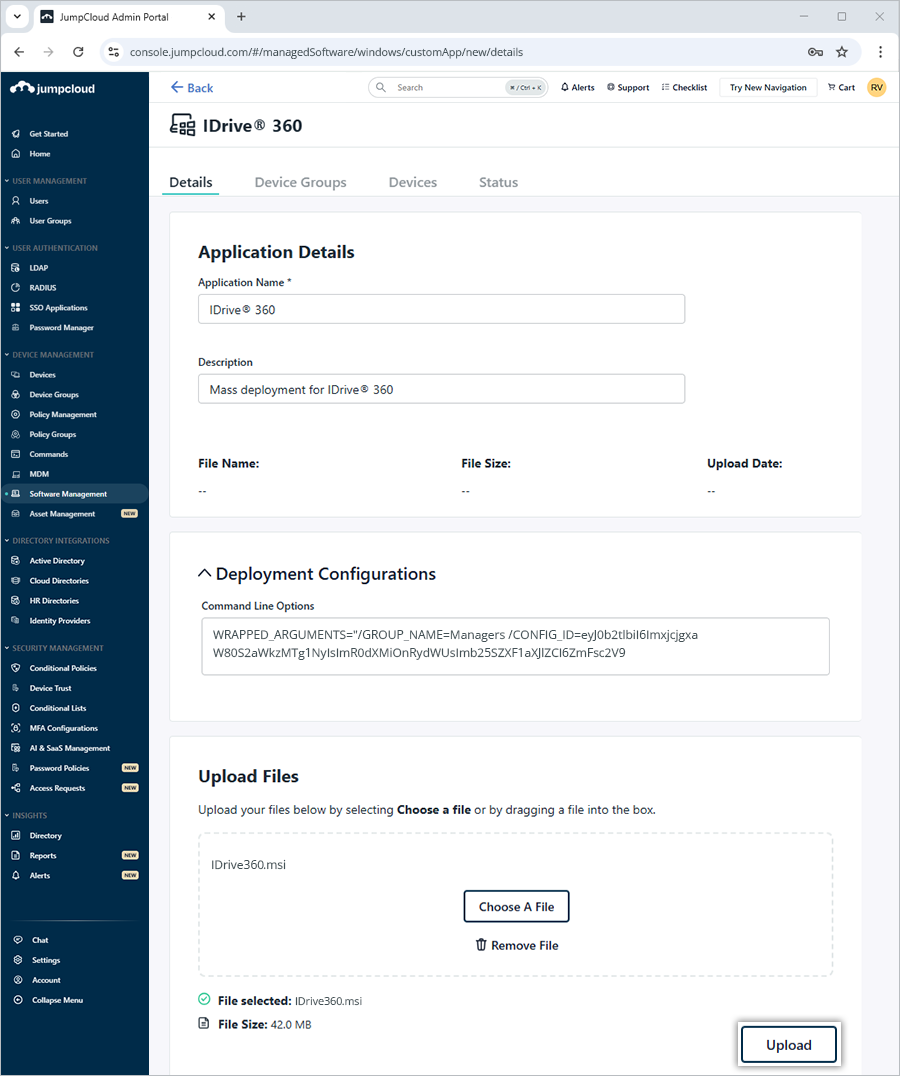
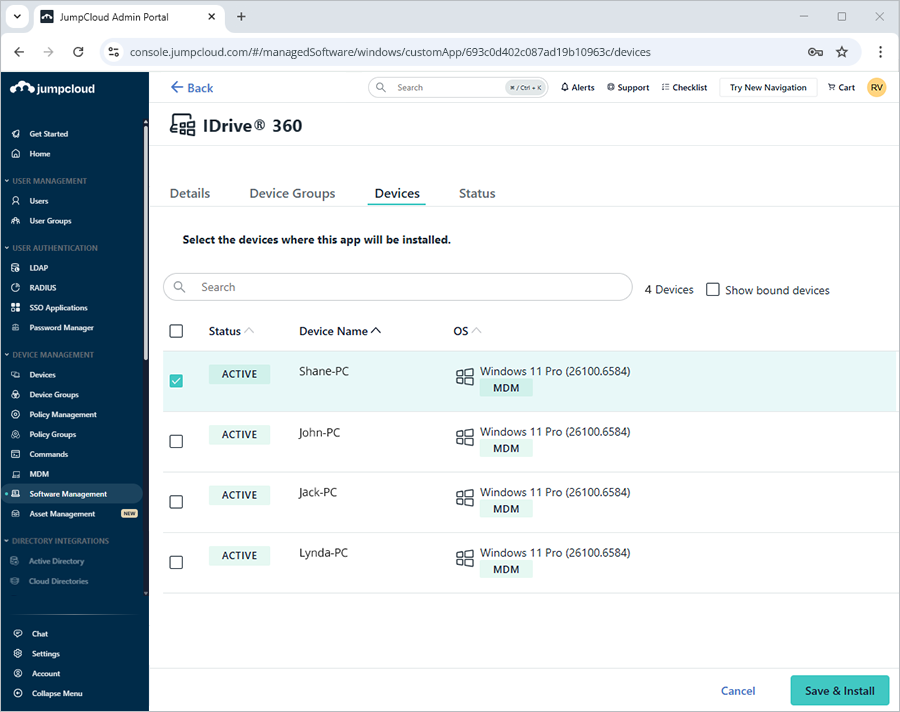
- To deploy to multiple devices:
- Select groups under 'Device Groups', or- Select individual devices under 'Devices' and click 'Save & Install'.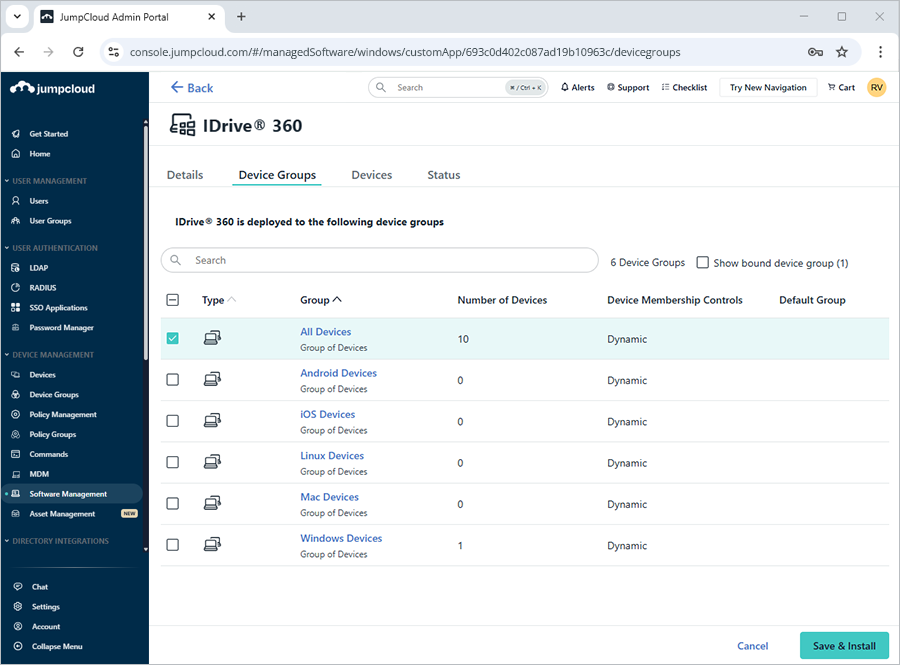
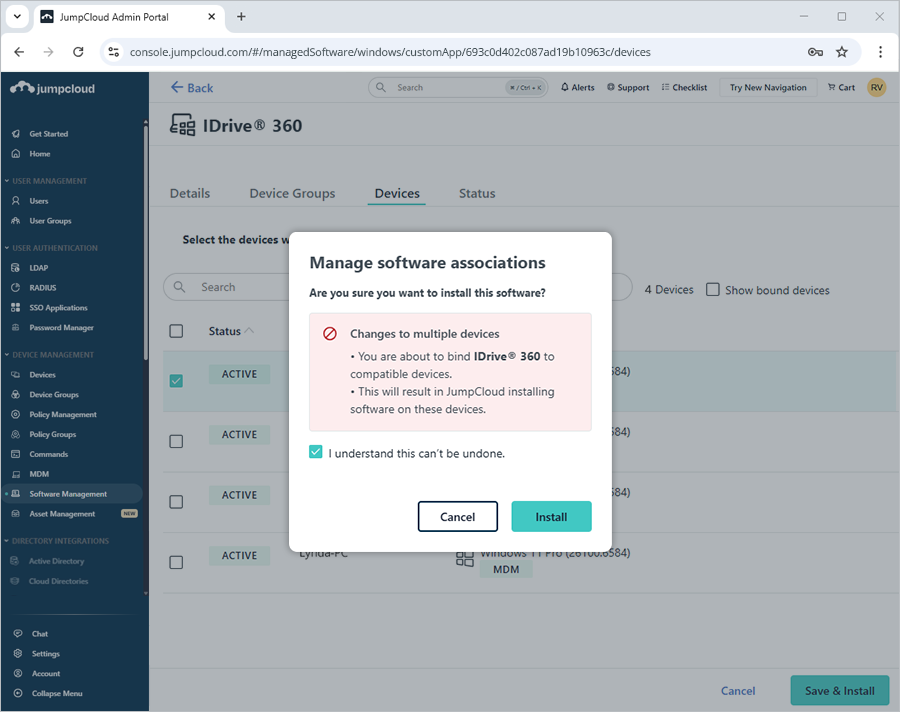
- On the confirmation screen, click 'Install' to initiate deployment.
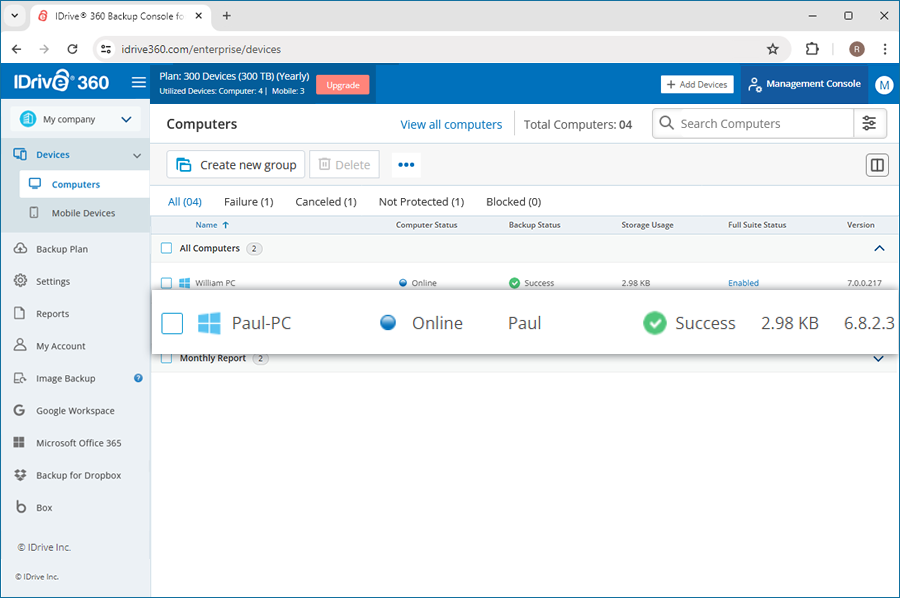
- After installation completes, verify the device under 'Devices' > 'Computers' in the IDrive® 360 dashboard.
It may take some time for the machines to receive the deployment package. To speed up the process, you may manually sync the Windows 10 devices or perform a reboot.