Single Sign-On with OneLogin
IDrive® e2 users can access their accounts using Single Sign-On (SSO). Administrators can choose a SAML 2.0 identity provider (IdP) to enable login to IDrive® e2 without the need to remember an additional password.
To set up Single Sign-On (SSO) with OneLogin, the admin needs to:
- Create an app on OneLogin Console
- Assign users to the app
- Configure IDrive® e2 for Single Sign-On (SSO)
Create an app on OneLogin Console
To use OneLogin as an identity provider for SSO, you need to create an app on the OneLogin console.
To create the app,
- Sign in to the OneLogin console using your OneLogin credentials.
- Click 'Administration' to view the admin console.
- Go to 'Applications'.
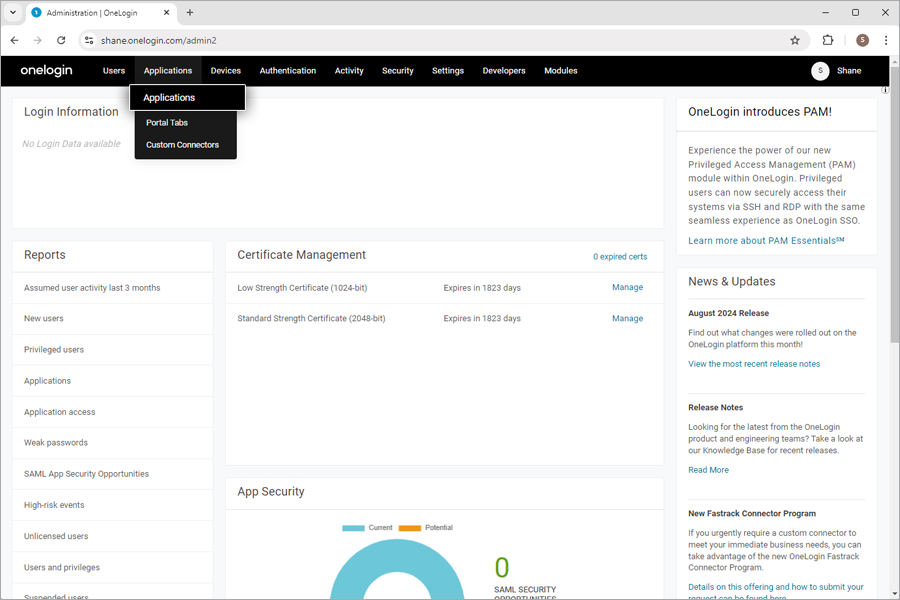
- Click 'Add App' or search for 'IDrive® e2', then click the app to add.
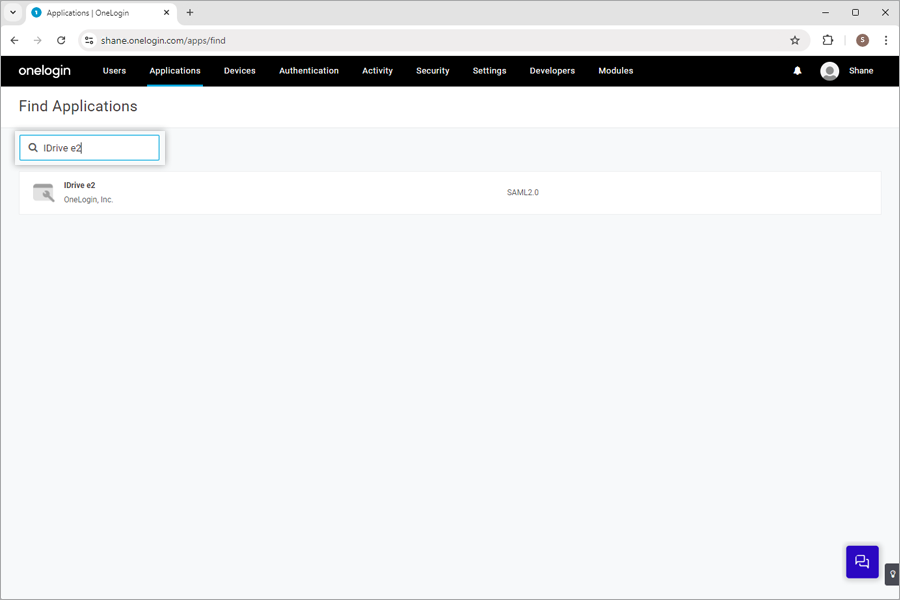
- Click 'Save' to add the IDrive® e2 to your Application list.
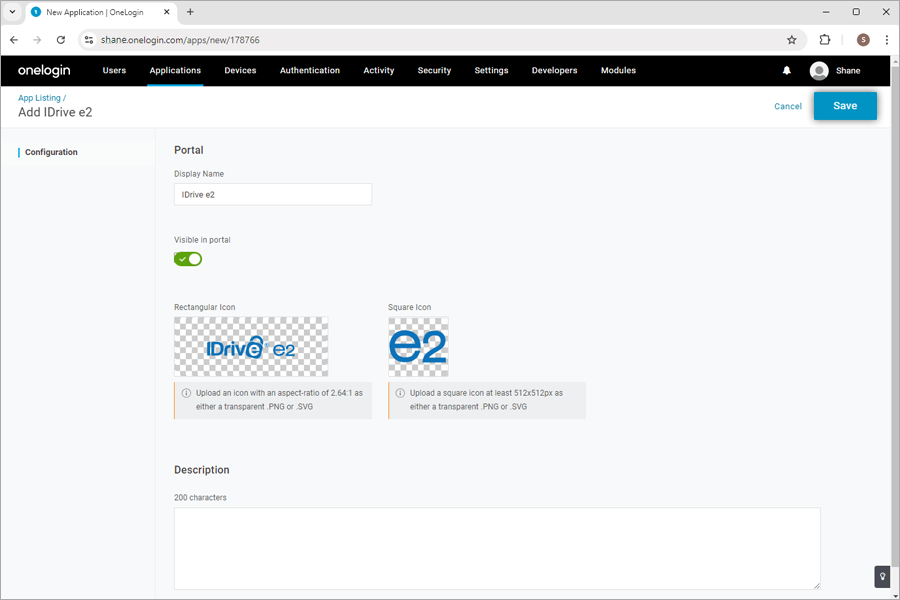
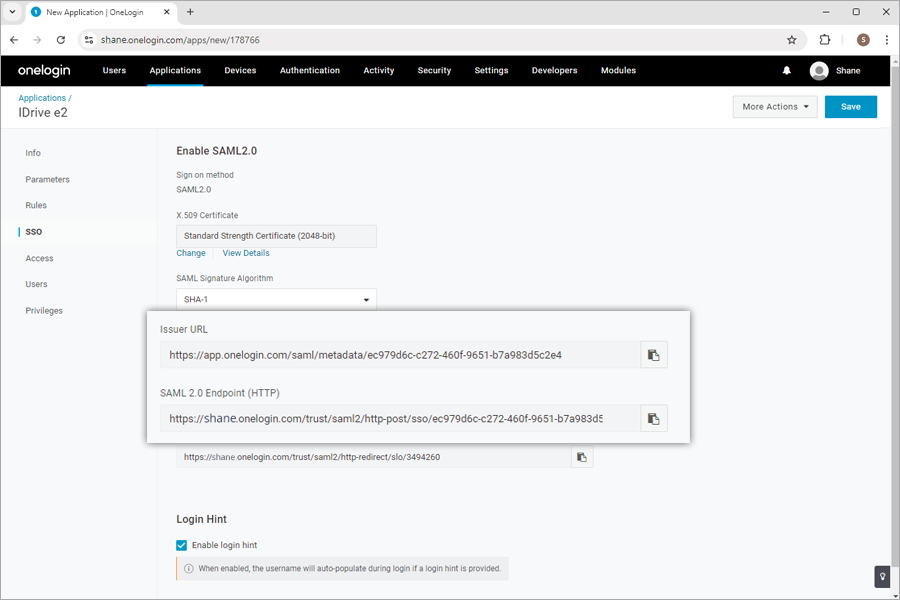
- Click 'SSO' and click 'View Details' to download the certificate.
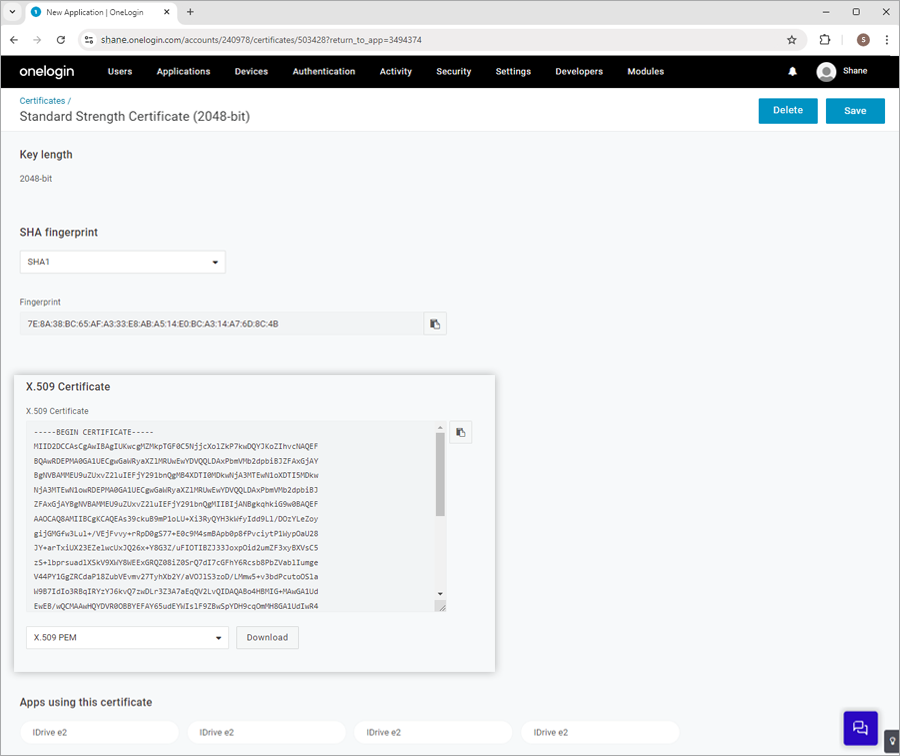
- Copy the 'Issuer URL' and SAML 2.0 Endpoint (HTTP).
Assign users to the app
To enable SSO for user accounts, the admin needs to assign users to the app created on the OneLogin console.
To assign users to the OneLogin app,
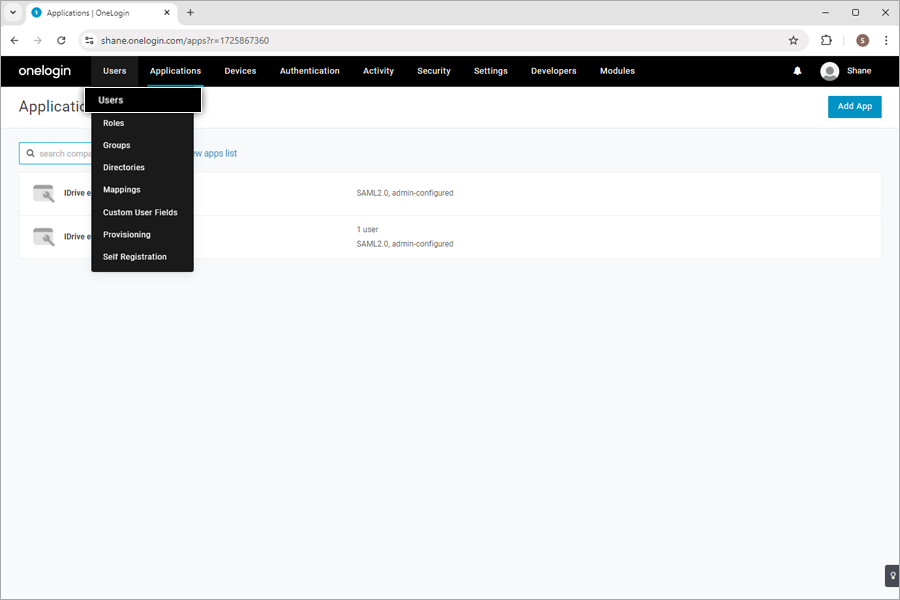
- Navigate to the OneLogin admin console and select 'Users' from the top menu.
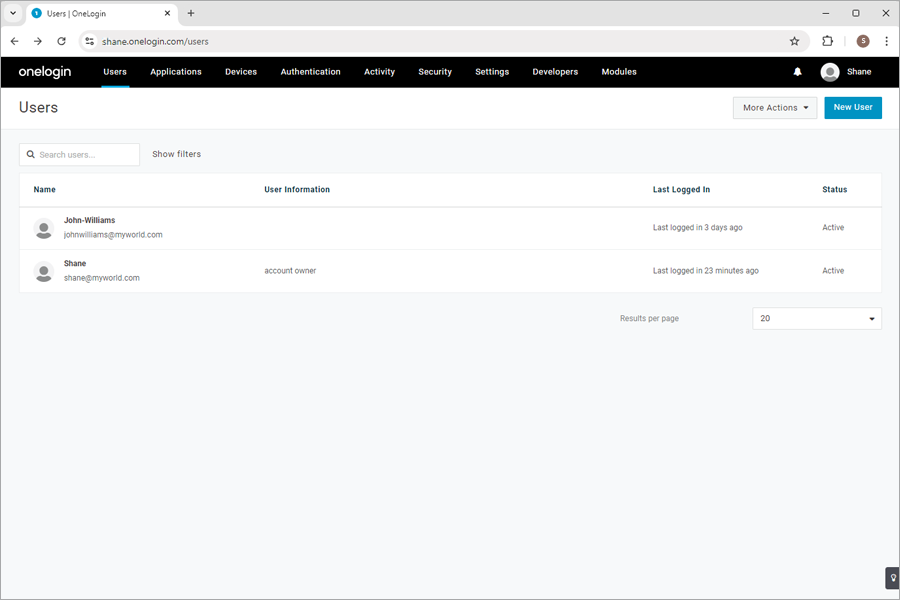
- Select an existing user or click 'New User' to add a new profile, then click 'Save User.'
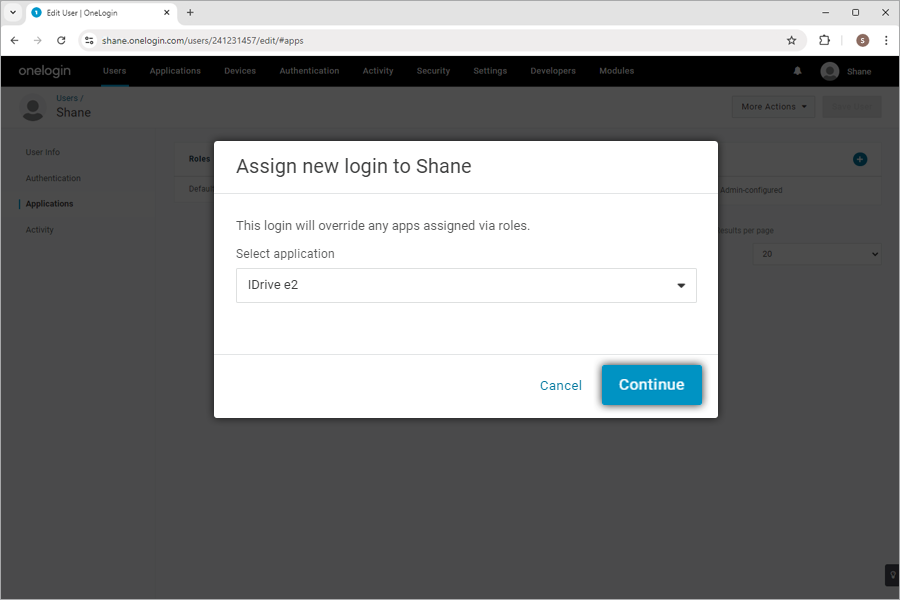
- In the user profile, go to the 'Applications' and click
 to select the app from the drop-down list, and click 'Continue'.
- Verify the 'NameID value' and click 'Save'.
Note: The 'NameID value' needs to be an email address.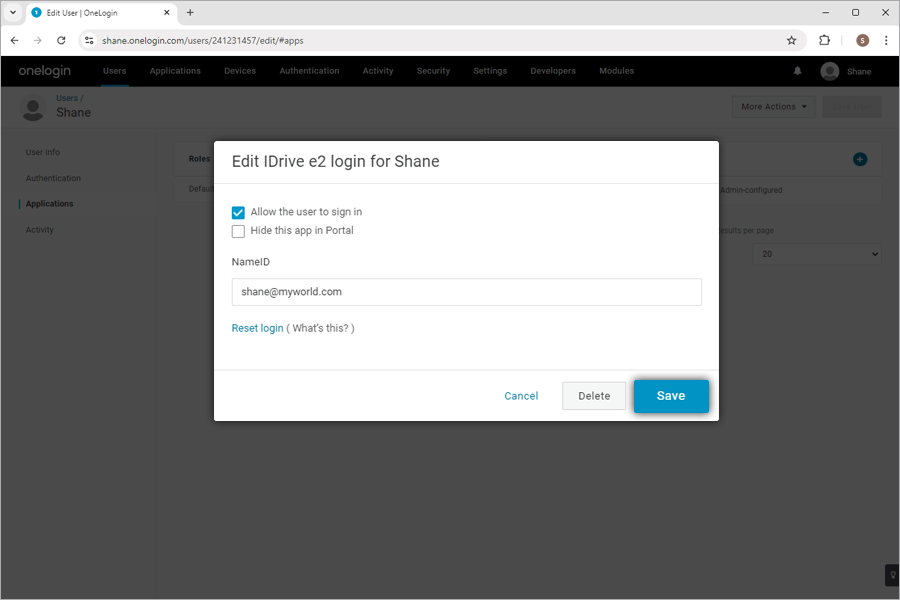
Configure IDrive® e2 for Single Sign-On (SSO)
An admin needs to provide the received SAML URLs and Certificate in the SSO section of IDrive® e2.
To configure SSO,
- Sign in to IDrive® e2 via web browser.
- Navigate to the 'Dashboard' > 'Settings' > 'Single Sign-On (SSO)'.
- Enter a name for your SSO profile.
- Enter the Issuer URL and SSO Endpoint.
- Upload the X.509 certificate received from your IDP.
Note: X.509 certificate should only be in X.509 certificate should only be in .pem, .txt, .cer, and .cert format. - Click 'Configure Single Sign-On'
You will receive an email when SSO is enabled.